AirPin PRO - AirPlay & DLNA
WaxRain Tech.Video Players & Editors
4.033.00 Reviews
- Version
- 5.6.1
- Installs
- 10.00K
- Age Rating
- Everyone
Screenshots


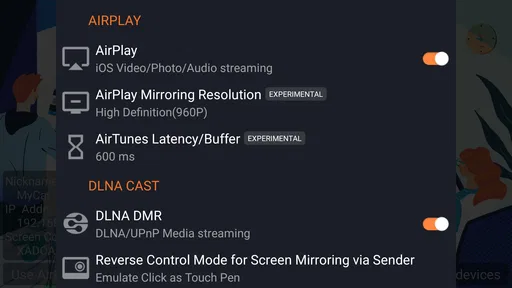
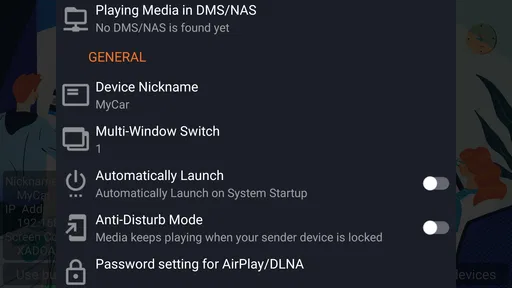
Our Review of AirPin PRO - AirPlay & DLNA
 Analysis by Appyee
I judge a streaming app less by its promises than by whether it fits into a home setup without creating extra work. AirPin PRO - AirPlay & DLNA is a paid video player and editor app from WaxRain Tech., built around receiving or sending media across devices and accessing network media. Its focus is narrower than a general-purpose casting hub, which is useful if you already rely on AirPlay or DLNA, but worth considering before paying for another tool.
Where the trust question begins
Streaming involves more than pressing play: a phone, a receiving screen, and often a shared home network all become part of the same task. I would treat AirPin PRO as a practical connection tool, not as a reason to assume anything about how a developer handles personal information. I look for controls I can actually see and use, and I avoid sending sensitive material to a screen unless I know who can view it.
The app is rated for Everyone, and its current version is 5.6.1. Those details help identify the app, but they are not substitutes for reviewing the prompts and settings on your own device. Before connecting, I make sure I have selected the intended receiver and that the people nearby are comfortable with what will appear on the shared display.
What the connection options mean in practice
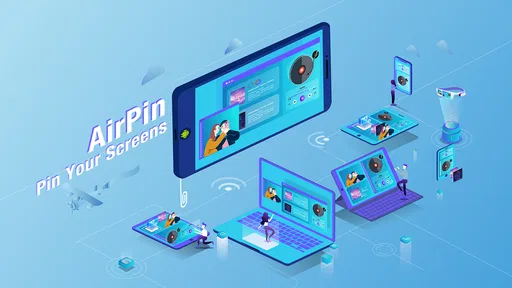
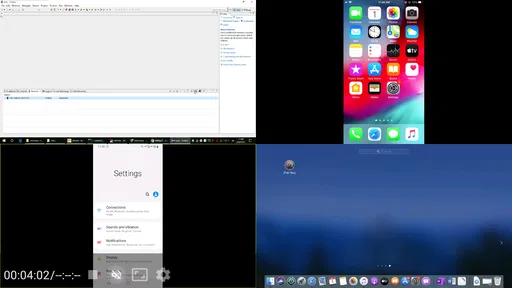
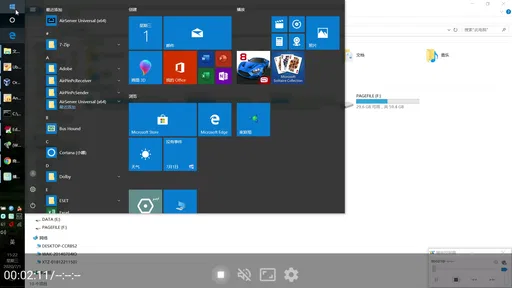
AirPin PRO works with AirPlay and DLNA, and it can handle up to four connections. It also plays media from Samba, NAS, and DMS sources. That combination makes it more relevant to someone with a home media library or several devices than to someone who only wants to mirror a phone once in a while.
A useful detail is to think of streaming and mirroring as different jobs. Sending a saved video to a television is not the same as showing everything on your phone screen: mirroring can reveal notifications or other content that appears while you use the device. When I want to share one clip, I prefer a media-only route where possible; when I need to demonstrate an app or show a photo that is not stored as a ready-to-play file, mirroring may be more convenient.
Everyday situations where it earns its place
Picture a low-key evening at home: a family member has a video on a phone, while everyone would rather watch it on the living-room screen. If the devices are on the same home network and the television or receiver is compatible, AirPin PRO gives you a way to move the viewing experience off the small display. For a shared playlist or a presentation, the multi-connection support may also help when more than one device needs to take part.
Its network-library support is another reason to consider it. If your films or other media already live on a NAS or a shared Samba location, playing from that source can save the step of copying files to a phone first. The trade-off is that you need to know where your media is stored and how your home network is arranged. Someone who keeps everything in a single streaming subscription may get little benefit from these options.
Who should choose a different approach
For occasional screen sharing, the built-in casting or mirroring option on a phone may be enough, especially when it already works with your television. A manufacturer’s own TV app can also be the simpler choice when you only need access to that brand’s features. AirPin PRO makes more sense when you specifically need its combination of AirPlay, DLNA, and network-storage playback.
I would not choose it expecting every receiver to behave identically. AirPlay and DLNA devices can differ, and the result depends on the equipment and the network as well as the app. If a connection fails, my first checks would be that both devices are on the intended network, that the receiver supports the method I am trying, and that I have selected the correct source. These checks are more useful than repeatedly tapping the same control.
Cost, reach, and the kind of user it suits
AirPin PRO costs $4.99, so I would decide based on a real recurring need rather than the appeal of having extra streaming options. The app has a 4.0 average from 240 ratings, 33 written reviews, and more than 10K installs. Those figures offer some context, but they cannot tell me whether it will fit a particular mix of phones, televisions, and network drives.
The app was released on April 18, 2020, and its minimum operating-system requirement is Android 2.3. A broad compatibility range can matter for older devices, but I would still check that the receiving hardware and the phone I plan to use can work together. The most useful pre-purchase question is simple: do I need to move media between these specific devices often enough to justify a dedicated app?
Hey there! Let me tell you about this nifty app I recently tried out, AirPin PRO - AirPlay & DLNA. If you're someone who loves streaming your media from one device to another without the usual hassle, this app might just be your new best friend. Let's dive into what makes this app stand out and whether it's worth your time and space on your device.
Seamless Streaming Experience
First things first, the primary reason you'd want to get AirPin PRO - AirPlay & DLNA is its ability to stream content effortlessly. As soon as you install it, you're greeted with a simple interface that doesn’t require a tech manual to navigate. The app supports AirPlay and DLNA, which means it's compatible with a wide range of devices. Whether you’re using an iOS or Android device, or even a Windows PC, this app doesn’t discriminate and plays well with others.
Setting Up is a Breeze
Let's talk about the setup process. You know how some apps make you jump through hoops just to get things working? Thankfully, that's not the case here. You simply install the app, and it walks you through a few easy steps to connect to your network. Before you know it, you'll be streaming content from your phone to your TV or any other compatible device. Trust me, if I can do it, anyone can.
Compatibility and Performance
One of the things that impressed me the most is the app's compatibility. Whether you're casting to an Apple TV, a smart TV, or even a gaming console, the app handles it all. I tried streaming a movie from my phone to my TV, and it was as smooth as butter. No annoying lags or buffering issues, which, let's be honest, can ruin a movie night.
Another feature that I found really cool is its ability to support multiple connections. So, if you're in a household with multiple devices, everyone can enjoy their own content without stepping on each other's toes. It's like having your personal streaming service right at home.
User Interface & Usability
Now, I have to say, the user interface is pretty straightforward. It’s not loaded with unnecessary features that you'd never use. It's clean, intuitive, and gets the job done. Everything is just a tap away, whether you want to play a video, music, or even view photos. The app’s layout makes navigation a breeze, which is always a plus in my book.
Also, if you're someone who loves customization, the app offers several settings to tweak your streaming experience. You can adjust quality, subtitles, and even playback speed. It’s like having a mini control room in your pocket.
Security and Privacy
Security is always a concern when dealing with streaming apps, especially when they connect to multiple devices. I was happy to see that AirPin PRO - AirPlay & DLNA takes this seriously. The app uses secure connections to ensure your data and media are safe from prying eyes. It’s always nice to know that while you're enjoying your favorite show, your privacy isn’t being compromised.
Final Thoughts
In conclusion, if you’re looking for a reliable, easy-to-use app that makes streaming from your devices a seamless experience, give AirPin PRO - AirPlay & DLNA a shot. It's user-friendly, performs excellently, and offers a level of convenience that makes media sharing a joy rather than a chore.
Whether you're tech-savvy or just someone who enjoys watching content on a bigger screen, this app caters to all. So go ahead, download it, and transform your device into a media powerhouse. You won't regret it!
A more careful way to test it at home
I would start with one uncomplicated test rather than moving an entire library into the workflow: play a non-sensitive video from a device I know is on the same network as the intended receiver. That reveals whether discovery and playback work in my actual setup before I rely on the app for a group viewing session. If the first attempt is unsuccessful, testing another supported route—AirPlay or DLNA, depending on the receiver—can help isolate whether the issue is the chosen connection method rather than the media file.
For NAS or Samba playback, I would begin with a folder containing a few files I recognize, then check that browsing and playback behave as expected before treating the app as my regular library player. This is a small but useful distinction: being able to reach a shared folder does not automatically mean every file, network condition, or receiver will behave the same way. Keeping the first test simple makes troubleshooting less frustrating.
Small choices that prevent awkward sharing
When I mirror a phone in a room with other people, I first consider what could appear on screen while I am using it. A message preview, a personal photo, or an unrelated app can turn an ordinary demonstration into an uncomfortable moment. I would silence or hide interruptions using the phone’s own controls before mirroring, and stop the session when the shared viewing is over. That is a practical privacy habit, not a claim about any special privacy feature in AirPin PRO.
The four-connection limit is most useful when several devices genuinely need to participate, not as a reason to connect everything at once. For example, a group can decide which person is sending the current clip and switch sources deliberately, instead of leaving several devices competing for attention. In a home where only one person streams at a time, this capacity may never affect the buying decision.
What I would check before paying
The key question is not whether AirPin PRO supports familiar protocol names; it is whether those protocols match the devices and media you actually use. I would identify the receiver model, confirm that it supports the connection method I plan to use, and think about whether my files are on a phone, a network share, or a NAS. That quick inventory can prevent paying for features that sound useful but do not solve a recurring problem in my home.
I would also separate a one-off compatibility problem from a reason to give up immediately. A phone connected to a guest network while the television is on the home network, for instance, may not discover the receiver. Switching both to the same intended network is a sensible check, while keeping a guest network private may be more important than making every device discoverable. If my household needs a more managed or tightly controlled media setup, I would favor the network and device controls I already understand rather than assume this app replaces them.
A measured verdict for a specific kind of viewer
My cautious recommendation is for people who regularly bridge different playback setups: someone with AirPlay or DLNA receivers and media stored on a home network, or someone who wants a dedicated option beyond the phone’s built-in casting tools. The combination is the real appeal. It can reduce file-copying and make a larger screen useful for media already in the home, provided the devices cooperate.
I would skip it if my only need were occasional mirroring and the built-in option already worked, or if I expected a universal fix for every television and file format. I also would not treat the app’s rating or download history as proof that it will suit my particular hardware. For me, the sensible choice is to buy it only when the AirPlay, DLNA, or shared-library workflow solves a problem I encounter often enough. That is a more grounded reason to keep a streaming app than simply wanting another icon on my phone.
Verdict
Strengths of AirPin PRO - AirPlay & DLNA
- Supports multiple protocols seamlessly.
- High-quality video streaming capabilities.
- User-friendly interface for easy setup.
- Reliable performance with minimal lag.
- Compatible with a wide range of devices.
Limitations of AirPin PRO - AirPlay & DLNA
- Requires a stable network connection.
- May not support all media formats.
- Initial setup can be slightly complex.
- Occasional minor bugs in the interface.
- Premium features require a purchase.
Similar Picks in This Category
View All
Google TV
Google LLC3.9

iTunes
Apple4.7

YouTube
Google LLC3.8

MX Player
Amazon Mobile LLC4.2

CapCut - Video Editor
Bytedance Pte. Ltd.3.5

PLAYit-All in One Video Player
PLAYIT TECHNOLOGY PTE. LTD.4.5
Frequently Asked Questions
What is AirPin PRO, and what does it offer?
AirPin PRO is an advanced media streaming app that allows you to use AirPlay and DLNA protocols to stream content from your Android or iOS device to various receivers, such as smart TVs and speakers. It supports mirroring, video casting, and music streaming, providing a seamless multimedia experience on larger screens and enhanced sound systems.
Is AirPin PRO compatible with all devices?
AirPin PRO is compatible with a wide range of devices that support AirPlay or DLNA protocols. This includes most smart TVs, media players, and audio systems. However, compatibility may vary depending on the specific model and manufacturer. It’s recommended to check the device specifications or consult the manufacturer to ensure compatibility.
How do I set up AirPin PRO for streaming?
Setting up AirPin PRO is straightforward. After downloading and installing the app, connect your Android or iOS device and the target device (e.g., TV or speaker) to the same Wi-Fi network. Launch AirPin PRO, select the media you wish to stream, and choose the target device listed within the app. Follow the on-screen instructions to complete the setup.
Does AirPin PRO support screen mirroring?
Yes, AirPin PRO supports screen mirroring, allowing you to display your device’s screen on a larger display, such as a TV. This feature is useful for presentations, gaming, or viewing photos and videos. Ensure both devices support screen mirroring protocols and are connected to the same network for optimal performance.
Is there a cost associated with using AirPin PRO?
AirPin PRO is a paid application, offering a range of advanced features not available in free versions. The cost provides access to a more stable and versatile streaming experience, including enhanced compatibility and support. Check the app store for the latest pricing information and consider the investment if you frequently stream media to various devices.
